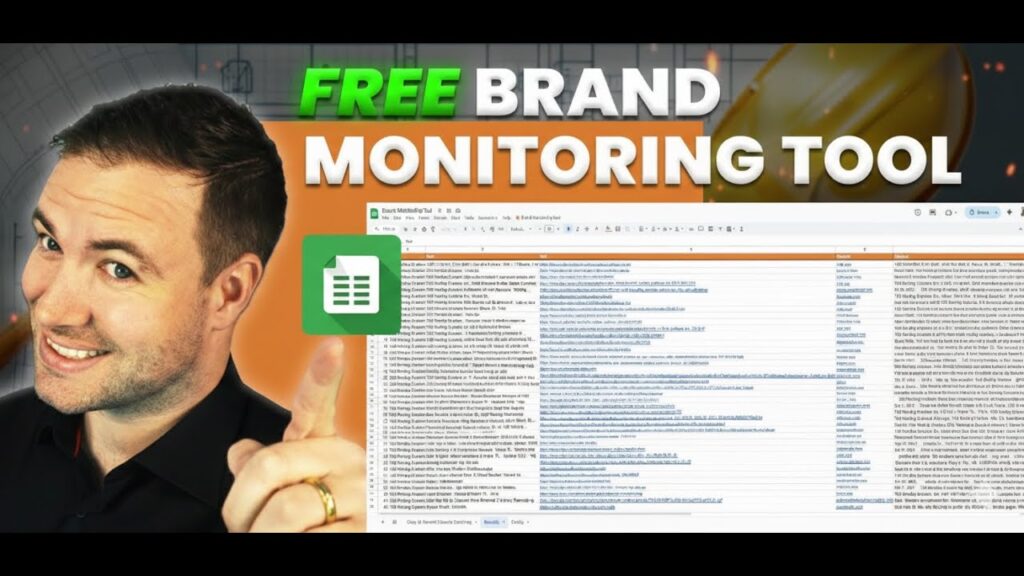
When I first started tracking how my competitors showed up online, I wanted something simple. I built a free brand monitoring tool that connects with Google Sheets and pulls mentions from places like Yelp, Instagram, and industry directories.
With just a few steps, I can see where any company is listed. That information helps me strengthen my own online presence. This free brand monitoring tool doesn’t need technical skills or coding. I just enter a business name and website, tweak a couple settings, and it collects results automatically.
It sorts listings, filters out duplicates, and ranks sources by relevance. That makes it easier to see how competitors build visibility.
I built a free spreadsheet tool to track where a business or competitor appears online. It works inside Google Sheets and uses an API call to collect results from different websites and social media platforms.
I can enter a brand name and its domain, and in just a few minutes, the sheet lists up to 500 mentions from sources like Yelp, Instagram, and industry directories.
| Column | Description |
|---|---|
| Rank | Order of results found |
| Brand | The company name entered |
| Title | Page title pulled from the web |
| URL | Direct link to the mention |
| Type | Source type (social, review, or directory) |
| Score | Color-coded rating to identify valuable listings |
The setup just needs a valid API key and a few basics in the config file. I make sure to strip any extra text from the domain and use the right business name for accuracy.
Using this tool helps me compare my brand’s visibility with others in my industry. I can quickly spot which sites list my competitors and find new places to build my own presence.
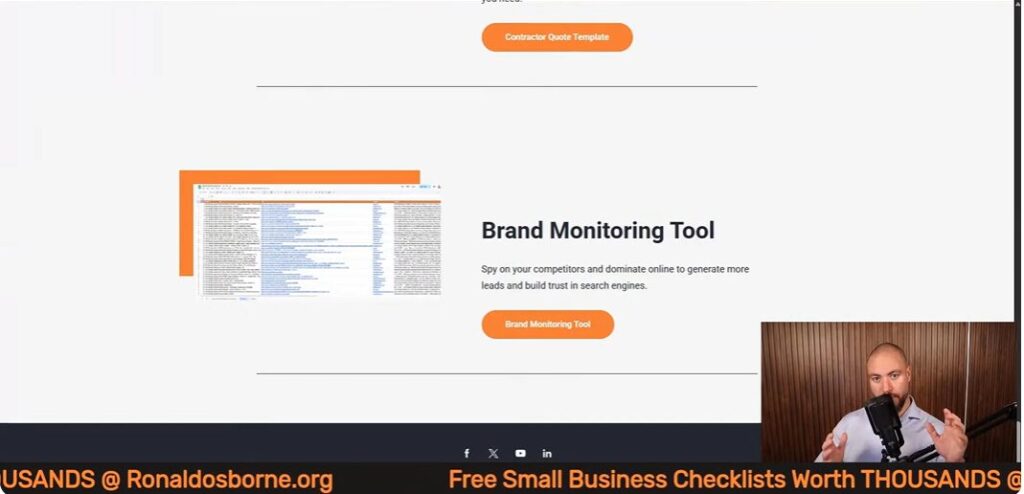
I made this brand monitoring tool available as a Google Sheet. You can grab it by heading to ronaldosborne.org and opening the Brand Monitoring Tool page.
A direct link sits under the video. Once you open the sheet, you’re good to go - no download or payment needed.
To check your competitor, just enter their business name and domain (like businessname.com). Don’t include https:// or slashes. The sheet will search sites like Yelp, Instagram, and industry directories, showing up to 500 results.
| Step | Action | Example |
|---|---|---|
| 1 | Go to the shared sheet link | ronaldosborne.org |
| 2 | Enter competitor’s website (no https://) | examplecompany.com |
| 3 | Type the exact business name | Example Company |
| 4 | Click “Start Brand Monitor” | Runs search automatically |
The tool connects to data sources using an API key. I’m not a coder, so I made this part easy. There’s a short setup video linked under the sheet, and it only takes about two minutes to get your API key.
Google gives you $200 in free API credits every month. That’s plenty for normal use, even if you run hundreds of brand searches. After you get the key, just open the config file, paste it into the right cell, and save. The system’s ready to go with no extra hassle.
You don’t need coding or IT skills. I built this for people like me who want quick results without touching code.
Just fill in the name and domain, hit one button, and watch the data show up. The layout keeps everything clear, showing results by rank, URL, and category.
If you spot duplicates, you can filter them out in seconds. I wanted tracking competitors to feel straightforward and quick.
I open the Google Sheet through my website. Once it loads, I check that the configuration tab is visible. This tab connects to an API that pulls data from online sources.
No coding required - Google’s free monthly credits cover the cost. The sheet can pull up to 500 brand mentions in one go, so it works for wide searches.
Steps I follow:
| Column | Purpose |
|---|---|
| Brand | Name of the business |
| Domain | Main website URL |
| Type | Source category (social, directory, etc.) |
| Score | Relevance indicator |
Next, I type in the target company’s official name and website domain. I strip away extras like “https://” or “www.” so only the base domain remains, like domain.com or domain.com.au.
I avoid nicknames or brand variations. For example, using Ronald Osborne instead of Ronald Osborne Coaching gives more accurate results. I double-check the correct version on the company’s About or Contact page.
Once I enter that info, I hit the Start Monitor button. A message pops up to show the search has started. The system runs several queries, collecting social media links, review pages, and industry directories.
Keeping entries neat and the data organized helps this free brand monitoring tool run smoothly and gives better results.
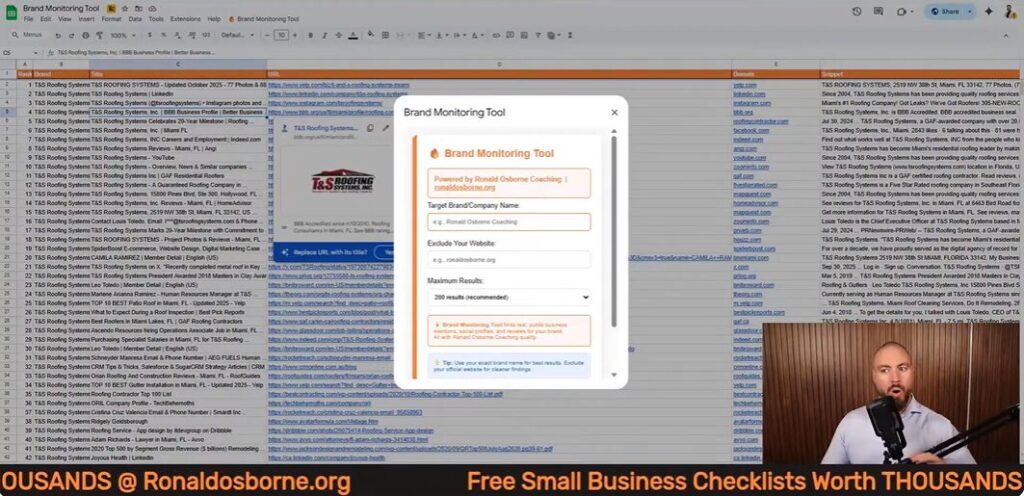
I open the spreadsheet and enter two details - the company’s name and its main domain. I strip away any extras like “https://” or slashes, so it’s just the domain, like example.com.
Then I hit Start Monitor and the sheet starts searching across the web. The system connects through a free API and returns up to 500 entries.
I can pick how many to load - 100, 200, or more - depending on how deep I want to dig.
The search checks several sources all at once. It looks through:
Each result comes with a label for the source type, which helps me filter and organize everything.
| Source Type | Example Site | Common Use |
|---|---|---|
| Social Media | Instagram, X | Branding and content |
| Review Platform | Yelp | Customer feedback |
| Industry Listing | RoofingContractor.com, GAF | Trade credibility |
Once the search wraps up, the sheet displays several columns:
I can filter or sort the data to find duplicates or zero in on the listings that matter. Green-scored entries highlight strong opportunities for building or improving a brand’s online presence.
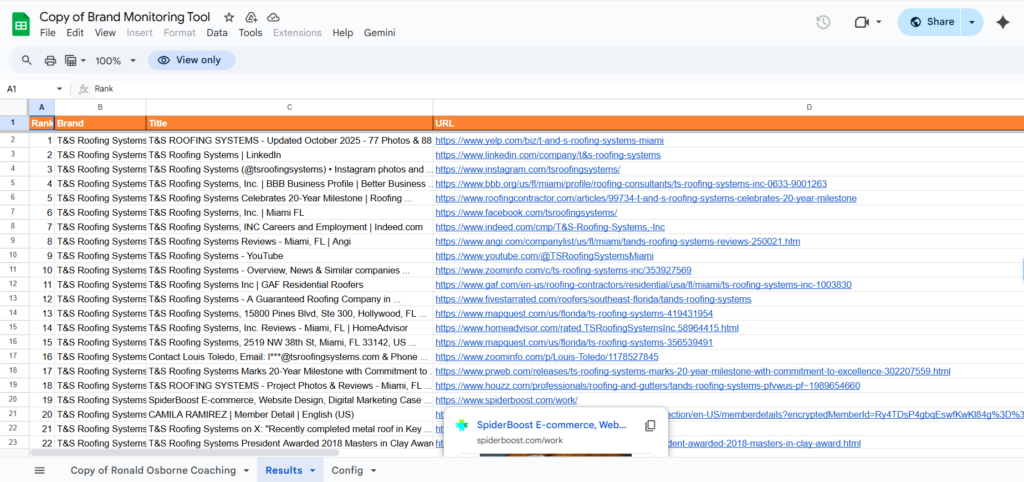
When the search wraps up, I notice a few columns that really stand out. Rank tells me where each result lands in the list.
Brand shows the business name I searched for. Title gives me the headline from the web page.
URL links straight to the listing. I find this makes skimming a lot easier.
The Type column labels each entry as things like social media, review site, or industry listing. This helps me group sources quickly.
Sometimes I filter the data to focus on just one category. Other times, I compare different platforms side by side.
| Column | Description |
|---|---|
| Rank | Lists the result order |
| Brand | Company or name searched |
| Title | Page headline or name pulled from the site |
| URL | Direct link to the page |
| Type | Source type (social, review, industry) |
| Score | Relevance or priority level |
The Score column helps me figure out which opportunities are worth my time. I keep an eye out for results marked in green since those are usually the most valuable.
Trusted directories or big social pages tend to boost brand visibility. When I’m comparing competitors, I go straight to the top-scoring entries.
I jot down any platforms they’re using that I’ve missed. Then I add those to my own plan, no shame in borrowing good ideas.
Example priority list:
Sometimes the sheet pulls in duplicate listings. Yelp or LinkedIn pages might show up more than once because their URLs can be quirky.
I check the domain part of the link to see if two entries are actually the same. If so, I remove extras to keep things tidy.
This helps avoid confusion later when I’m counting total mentions. Every valid URL should be unique, so I can match each listing to a different source.
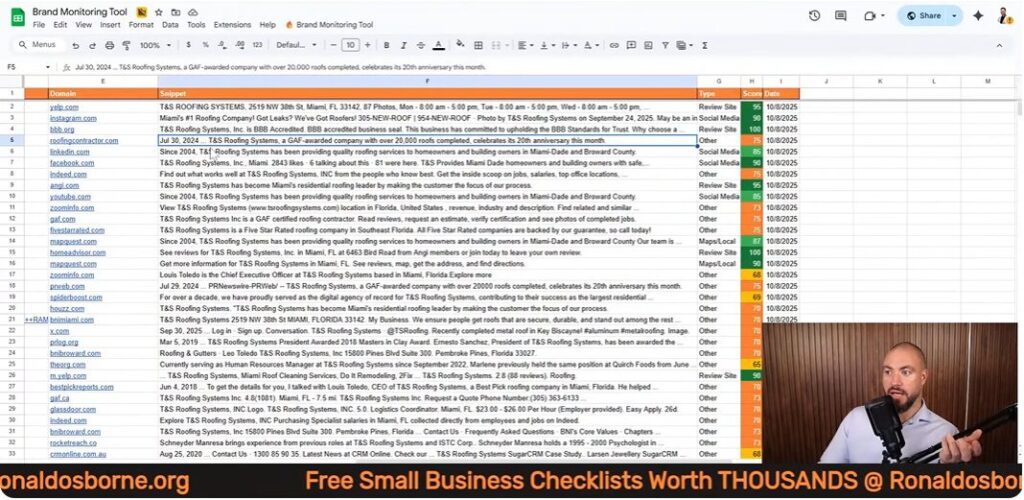
I built this tool to quickly spot where a brand or competitor pops up online. It hooks into an API and connects through Google Sheets, so I can track listings across places like Yelp, Instagram, and industry directories.
Key Strengths include:
| Feature | Benefit |
|---|---|
| API connection | Pulls accurate, real-time listings |
| Scoring system | Helps identify important mentions |
| Free monthly credits | Removes cost concerns |
| Built-in filters | Speeds up analysis |
The tool saves me a ton of time, but it’s not perfect. Sometimes it includes duplicate links, especially from review sites like Yelp.
I have to clean up extra entries now and then. It also caps results at about 500 listings per run, so if you work with huge brands, that can feel limiting.
Occasionally, the data takes a few minutes to load while the tool does its thing. Nothing’s ever instant, right?
Limitations to keep in mind:
I use a simple spreadsheet tool to track where competitors show up online. It lists their profiles on social media, review sites, and industry directories.
When I enter their name and domain, I see all their public mentions in one place. I focus on clean, accurate inputs - the business name should match exactly what’s on their website’s “About” page.
I strip out prefixes like “https://” and endings such as “/home.” That way, the system only searches the right domain.
To spot the best results, I use color-coded scores.
This format makes it easy to spot credible platforms where my brand should show up, too.
| Listing Type | Example Source | Value for a Brand |
|---|---|---|
| Social Media | Instagram, LinkedIn | Builds public presence |
| Review Sites | Yelp | Improves local trust and visibility |
| Industry Sites | Trade or supply directories | Strengthens professional credibility |
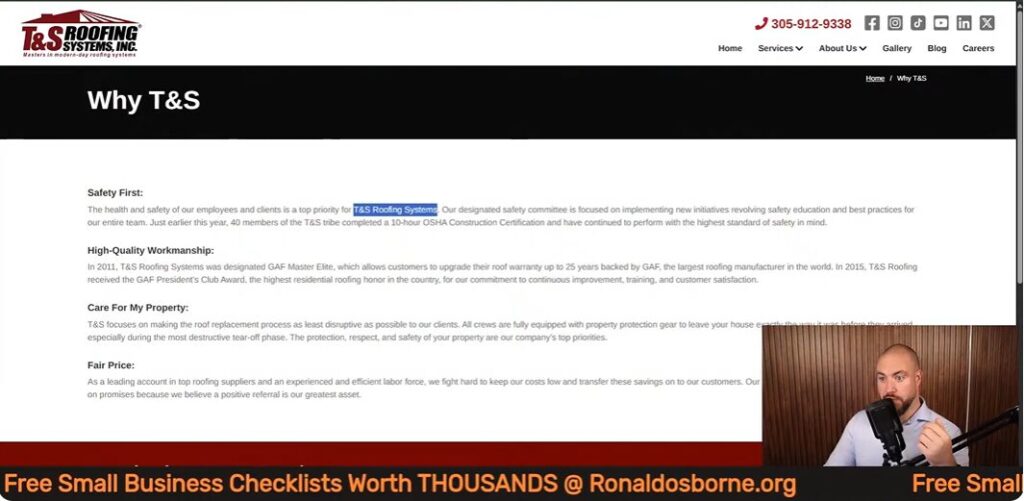
Every industry has its own digital spaces. When I look at competitors, I check if they’re listed on trade-specific platforms.
Roofing businesses, for instance, should show up on supplier directories run by material manufacturers. That’s just one of those small details I like to catch early.
This strategy helps me figure out which authoritative sites really matter in a field. If I see a competitor on an official partner page, I usually try to land a similar spot myself.
Even this free brand monitoring can reveal these opportunities if you poke around enough. I’ll often compare hundreds of results - sometimes up to 500 mentions - to spot patterns.
Duplicates do pop up, but filtering them lets me zero in on genuine insights and cuts out the noise.

Ronald Osborne is an Australian entrepreneur and experienced business coach. With over ten years of business and mentoring experience, an MBA specializing in Finance, along with launching/partnering with over 10 of his own companies around the globe, he has been able to achieve his version of success. Ronald has been able to help large telecommunication companies, law firms, trade businesses, and everyday business owners improve their business and take it to the next level.